Introduction
Young learners in kindergarten through second grade thrive in environments that are interactive, visual, and emotionally engaging. As digital tools become more integrated into early childhood education, teachers face the challenge of adapting technology to meet the developmental needs of all students—including those with special needs.
Traditional online discussion boards, often designed for older learners, can feel inaccessible and uninspiring to young children. Padlet, a visual collaboration platform, offers a developmentally appropriate and inclusive way to foster communication, creativity, and community in K–2 classrooms. This article explores how Padlet can support early literacy, social-emotional learning, and classroom dialogue, with specific strategies for students with diverse learning needs.
Why Traditional Discussion Boards Don’t Work for K–2
Most discussion boards rely on written responses and abstract prompts, which can be difficult for young children who are still developing literacy and expressive language skills. Common challenges include:
- Limited reading and writing skills
- Lack of visual support
- Minimal engagement
- Difficulty navigating interfaces
These barriers are even more pronounced for students with disabilities such as autism spectrum disorder (ASD), speech and language delays, ADHD, or motor impairments (Copple & Bredekamp, 2009).
What Is Padlet?
Padlet is a user-friendly digital bulletin board that allows students to post text, images, drawings, audio, and video (Padlet, 2025). Teachers can create boards with simple prompts and invite students to respond using a variety of media. Padlet’s visual and tactile nature makes it ideal for young learners and those with special needs.
Features That Support Accessibility
- Voice Recording: Students with dyslexia or speech delays can record responses instead of writing.
- Drawing Tools: Children with limited verbal skills can illustrate their ideas.
- Photo Uploads: Visual prompts support comprehension for students with cognitive delays.
- Emoji Reactions: Simple icons allow nonverbal students to express preferences or emotions.
- Screen Reader Compatibility: Padlet supports assistive technologies for visually impaired students.
These features align with Universal Design for Learning (UDL) principles and support inclusive education (CAST, 2018). These features also align with developmentally appropriate practices by offering multiple modes of expression (NAEYC, 2020).
Padlet in the K–2 Classroom
Padlet can be used in a variety of ways to support learning and classroom community:
1. Morning Meetings and Check-Ins
Use Padlet as a digital “feelings board” (see fig. 1) where students post how they’re feeling using emojis, drawings, or voice recordings. For students with emotional or behavioral challenges, this can be a safe way to express themselves.
Example: A student with selective mutism uses the emoji tool to indicate their mood each morning, helping the teacher monitor emotional well-being.
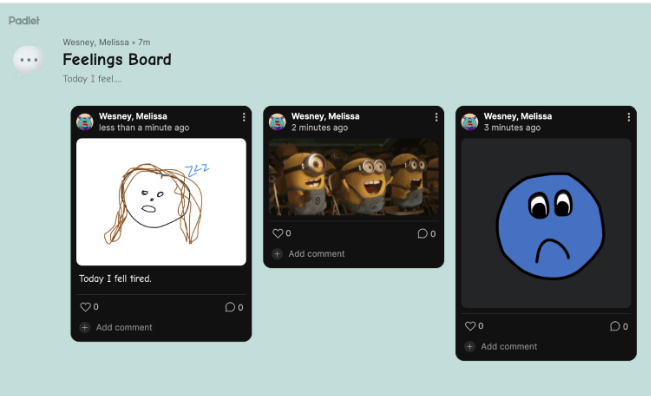 Figure 1. Screenshot of an example “feelings board” created in Padlet.
After a read-aloud, students can respond to a prompt like, “What was your favorite part?” by drawing a picture or recording their voice.
Example: A student with fine motor delays uses voice recording to retell the story instead of writing or drawing.
3. Science and Exploration
During a nature walk, students can take photos and upload them to a Padlet board (see fig. 2) labeled “Things We Found Outside.”
Example: A student with autism who prefers visual learning uploads a photo of a leaf and adds a label using the text tool.
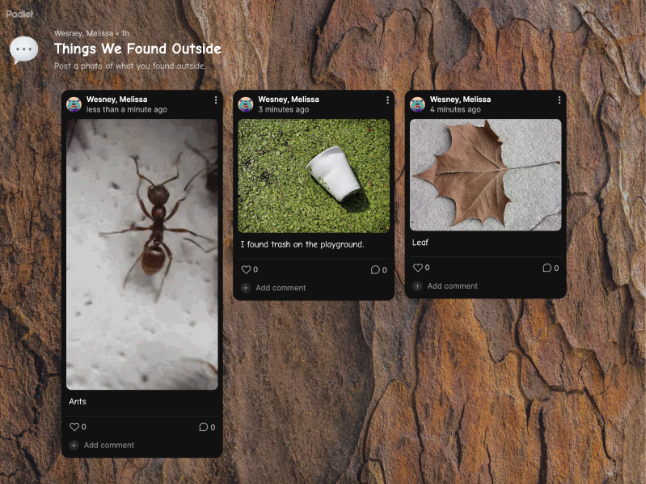 Figure 2. Screenshot of an example science connected Padlet.
4. Classroom Celebrations
Create a Padlet board for birthdays, holidays, or special events.
Example: A student with speech delays records a birthday message using the audio tool.
5. Interactive Centers
Use Padlet as a station in literacy or math centers.
Example: A student with ADHD uses Padlet during a center rotation to stay focused and engaged.
Implementation Tips for Early Childhood Educators
To ensure Padlet is successful in K–2 settings, especially for students with special needs, consider the following strategies:
- Keep prompts simple and visual
Use short, clear language and add an image or emoji to illustrate the question.
Example: Show a picture of a cloud and ask, “What do you notice about this cloud?” instead of saying, “Describe the weather.”
- Model responses with visual and verbal cues
Show students how to post by creating an example entry and narrating the steps.
Example: Record a short voice message saying, “I feel happy today,” and point to the emoji you chose.
- Limit choices initially to reduce cognitive load
Start with one or two response options (e.g., emoji or voice recording) before introducing more features.
Example: For the first activity, allow only emojis and voice—not text or photos.
- Use assistive technology as needed
Enable features like voice recording or screen readers for students who need them.
Example: Encourage a child with dyslexia to use the audio tool instead of typing.
- Teach digital citizenship
Explain simple rules like “Be kind” and “Only post your own work” using visuals and role-play.
Example: Show a thumbs-up picture and say, “We use kind words on Padlet.”
- Celebrate all contributions
Acknowledge every post with positive feedback or a class cheer to build confidence.
Example: Say, “Great job sharing your idea!” and add a heart emoji to their post.
Student Impact and Feedback
In classrooms where Padlet has been introduced, teachers report increased engagement, especially among students with special needs (Santos et al., 2024). Students enjoy the freedom to express themselves in creative ways and often show greater effort when given choices.
Teachers also note that Padlet helps them better understand student thinking, especially when students use voice recordings or drawings to explain their ideas. This insight supports formative assessment and individualized instruction.
Example: Inclusive Story Retelling
On a recent student teacher observation, I witnessed how a pre-service Kindergarten teacher utilized Padlet. After reading The Very Hungry Caterpillar, the kindergarten pre-service teacher asked students to retell the story using Padlet. One student drew the caterpillar’s journey, another recorded a voice summary, and a third uploaded a photo of their caterpillar craft. A student with autism used emojis to show the caterpillar’s emotions. The Padlet board became a digital gallery of student understanding and creativity, showcasing multiple ways to learn and share.
Limitations of Padlet in K–2 Classrooms
While Padlet offers many benefits for engaging young learners, educators should be aware of potential limitations:
- Requires Device Access and Internet
Students need access to tablets or computers and a reliable internet connection, which may not be available in all classrooms or homes.
- Learning Curve for Young Children
Even though Padlet is user-friendly, K–2 students may need extra time and guidance to learn how to post, navigate, and use features appropriately.
- Screen Time Concerns
Increased use of digital tools can add to overall screen time, which should be balanced with hands-on and outdoor activities.
- Privacy and Safety Considerations
Teachers must ensure boards are secure and monitor posts to prevent inappropriate content or accidental sharing of personal information.
- Limited Offline Functionality
Padlet is primarily an online tool, so activities cannot continue without connectivity, which may disrupt learning during outages.
- Potential for Overstimulation
Too many options (images, audio, emojis) can overwhelm young learners. Careful planning is needed to keep boards simple and focused.
- Limitations of Free Version
- Although Padlet has a free version, it is limited. Users can only create three Padlet boards, video recordings are limited to 2 minutes, and audio recording to 5 minutes. If a teacher wants to use it regularly in their classroom, then they would need to get a membership. The prices vary from $69.99/year (for one user) to a school membership of $1,000/year (for 10 teachers) in 2026.
Conclusion
Padlet offers a powerful way to bring student voice and creativity into the K–2 classroom. By providing multimodal options for expression, it supports diverse learners—including those with special needs—and fosters meaningful engagement. For new teachers seeking to integrate technology in developmentally appropriate and inclusive ways, Padlet is a flexible and accessible tool that can transform classroom conversations.
As digital learning continues to expand in early childhood education, tools like Padlet will be essential in creating inclusive, joyful, and interactive learning environments.
References
CAST. Universal Design for Learning Guidelines Version 2.2. 2018. http://udlguidelines.cast.org.
Copple, Carol, and Sue Bredekamp. Developmentally Appropriate Practice in Early Childhood Programs Serving Children from Birth through Age 8. 3rd ed. Washington, DC: National Association for the Education of Young Children, 2009.
National Association for the Education of Young Children (NAEYC). Developmentally Appropriate Practice Position Statement. 2020. https://www.naeyc.org/resources/position-statements/dap.
Padlet. “Help Center.” Accessed September 19, 2025. https://padlet.help.
Santos, Genivalda Batista de Lima dos, Rosete Lopes França Maciel, Elisangela Dias Brugnera, and Maria Angélica Dornelles Dias. 2024. Pedagogical Practice Using Digital Technologies: Introducing Padlet in the Classroom. Pedagogical Practice Using Digital Technologies, 4 (1). https://doi.org/10.22533/AT.ED.5584124020110.
|
|
Dr. Wesney is an Assistant Professor of Education at Sul Ross State University. After spending 20 years in elementary education, Dr. Wesney began her career in higher education in 2021. Her research interests include ADHD, reading development in children, and issues in elementary education. |